AOP catalog production
How to Quickly Create High-Quality AOP Product Images for More SKUs
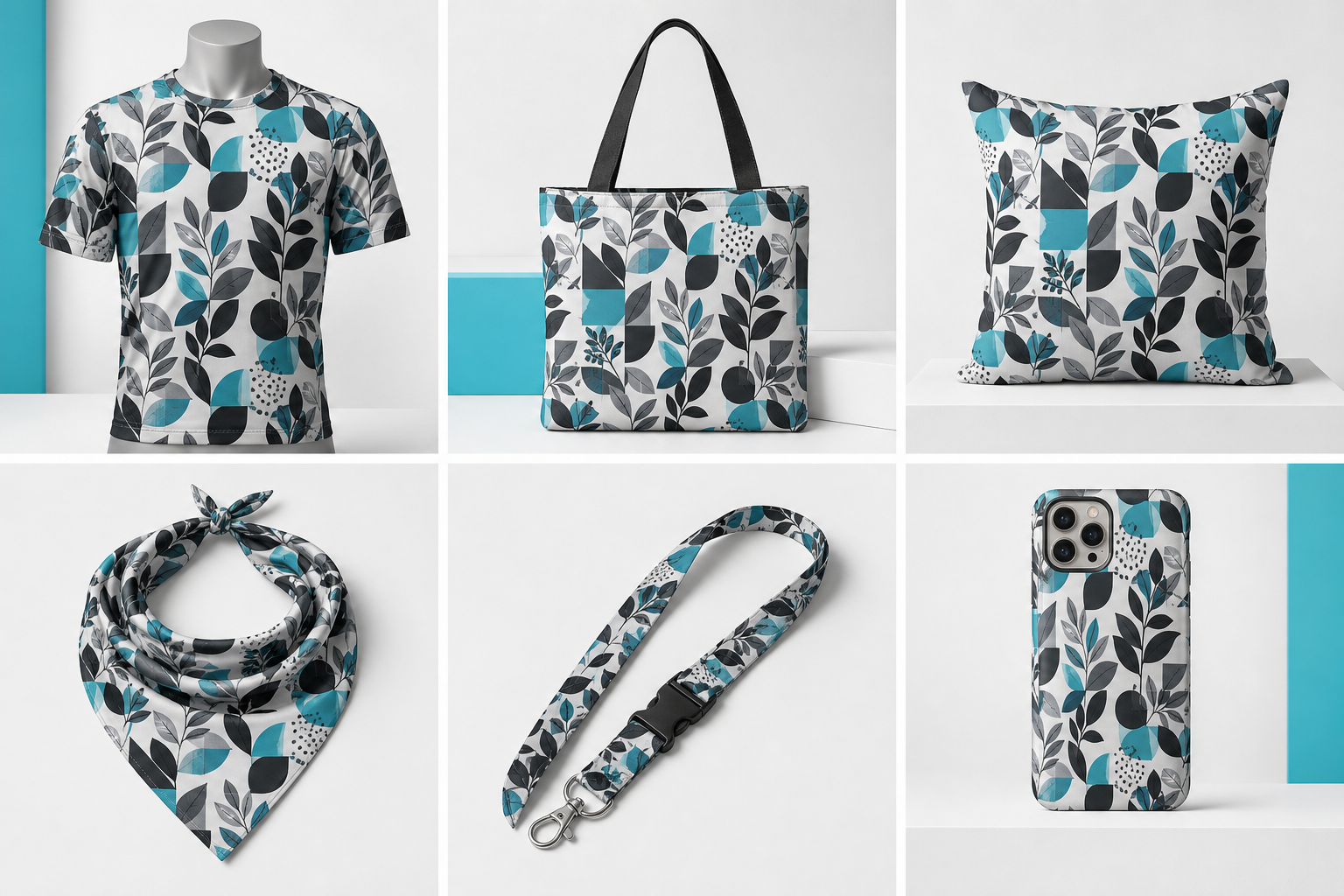
The hardest part of scaling an AOP business is often not designing patterns. It is turning product photos into natural-looking, listing-ready images with a growing print-design library quickly enough to keep up with an expanding catalog.
Each product, model, camera angle, and use case may need to carry an AOP design. As your product catalog and design library grow, the number of required images increases rapidly.
Assuming that every selected product photo is paired with every design asset, with one output image for each combination, the total can be calculated as:
Number of AOP product images = Product photos × Finalized AOP design assets
Here, a “design asset” includes every completed colorway that needs to be exported separately.
For example:
- 300 product photos × 1 AOP design asset = 300 product images
- 300 product photos × 100 AOP design assets, including separately counted colorways, = 30,000 product images
That is the business logic behind producing 30,000 AOP product images. These are 30,000 image combinations—not necessarily 30,000 SKUs.

The real challenge is not whether you can create 30,000 files. It is whether you can build a production workflow that continues to deliver natural-looking product forms, appropriate pattern scale, balanced lighting, and consistent results as output grows.
Why Traditional Workflows Cannot Support a Large AOP Catalog
A product photo does not become a credible AOP visual through a simple pattern overlay.
The product’s shape affects the composition. Curves and perspective change the apparent scale of the pattern. Folds compress or stretch individual motifs. Edges and occluded areas determine which parts of the pattern remain visible. Materials, highlights, and shadows determine whether the product looks genuinely printed or the pattern appears to float above the image.

Basic bulk overlays may be fast, but they often make the product look stiff, flat, and unnatural. Editing every image individually in Photoshop—with separate adjustments for masks, perspective, pattern density, folds, occlusions, and lighting—can produce better results, but it cannot support large-scale catalog expansion.
Even if each image takes only two minutes, producing 30,000 product images requires approximately 1,000 hours of repetitive work. Quality checks, file naming, and rework would add even more time.

PSD and Smart Object workflows can reduce some of those steps, but they still require separate templates for different products and camera angles. Generative AI, meanwhile, may alter the product’s shape, pattern structure, design proportions, or consistency across a batch.
When a catalog grows from dozens of SKUs to thousands, AOP product-image production—not design—is now the main bottleneck.
How Does Batch Mockup Solve This Problem?
MockupLabs Batch Mockup starts with your real product photos and your own print designs instead of requiring you to find a matching PSD template.
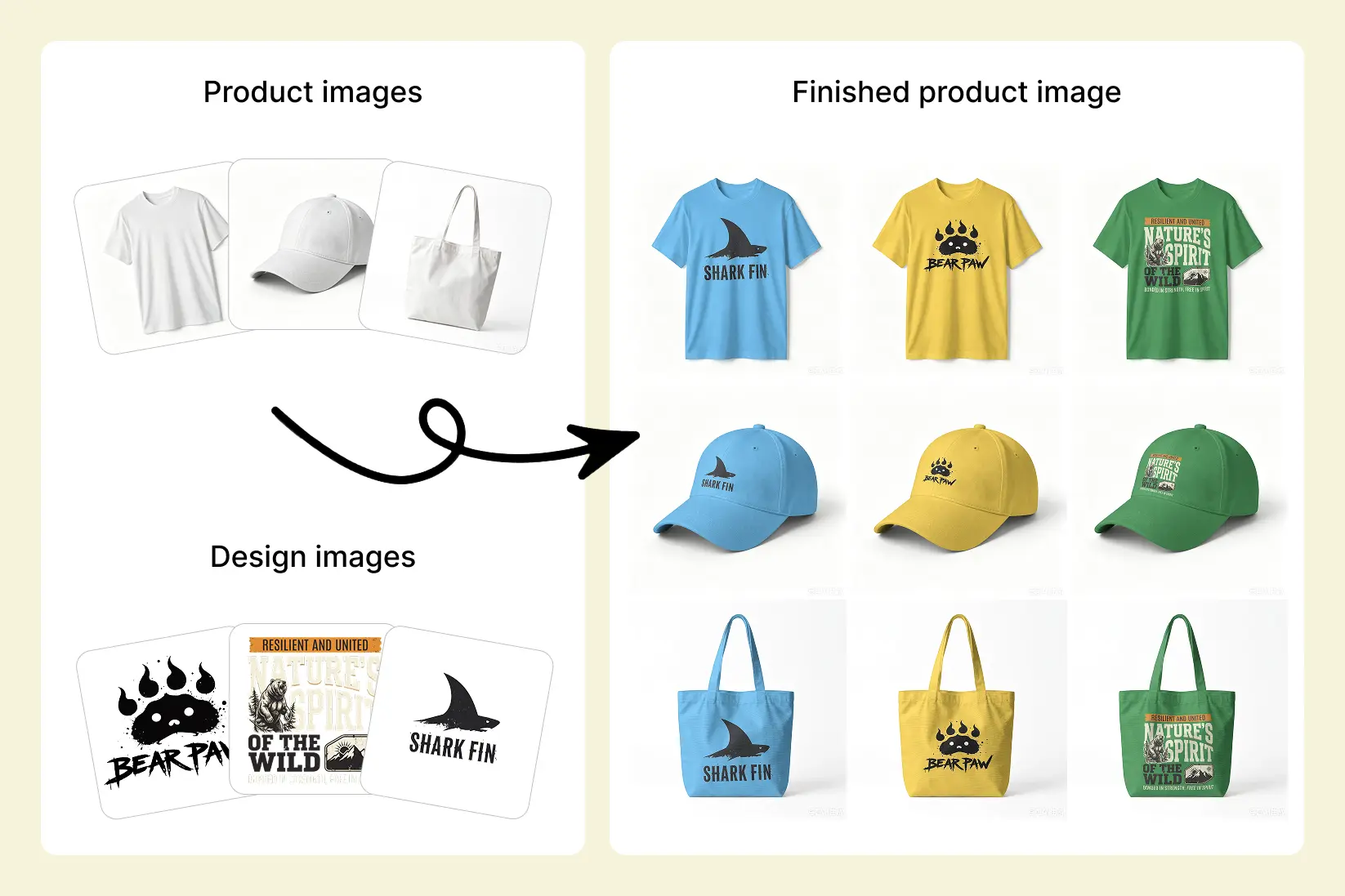
1. Turn Your Own Product Photos Into Editable Mockups
Upload white-background product shots, model images, multiple angles, or lifestyle photos. The system identifies the product area in each image and turns the static photo into an editable, reusable mockup.
2. Upload an AOP Pattern and Create a Full-Coverage Layout
Select the relevant product area, then upload a pattern, artwork file, or finalized colorway and create a full-coverage layout. The system applies the design to the detected visible area of the product.
The product’s original material texture, highlights, and shadows continue to influence how the pattern appears. This helps the result look closer to real product photography or a 3D-rendered preview instead of a flat layer placed over the product.
In this context, full coverage refers to the visible product area in the listing image. It is not a factory-ready cut-and-sew print file, nor does it guarantee production-level continuity across hidden areas or physical seams.
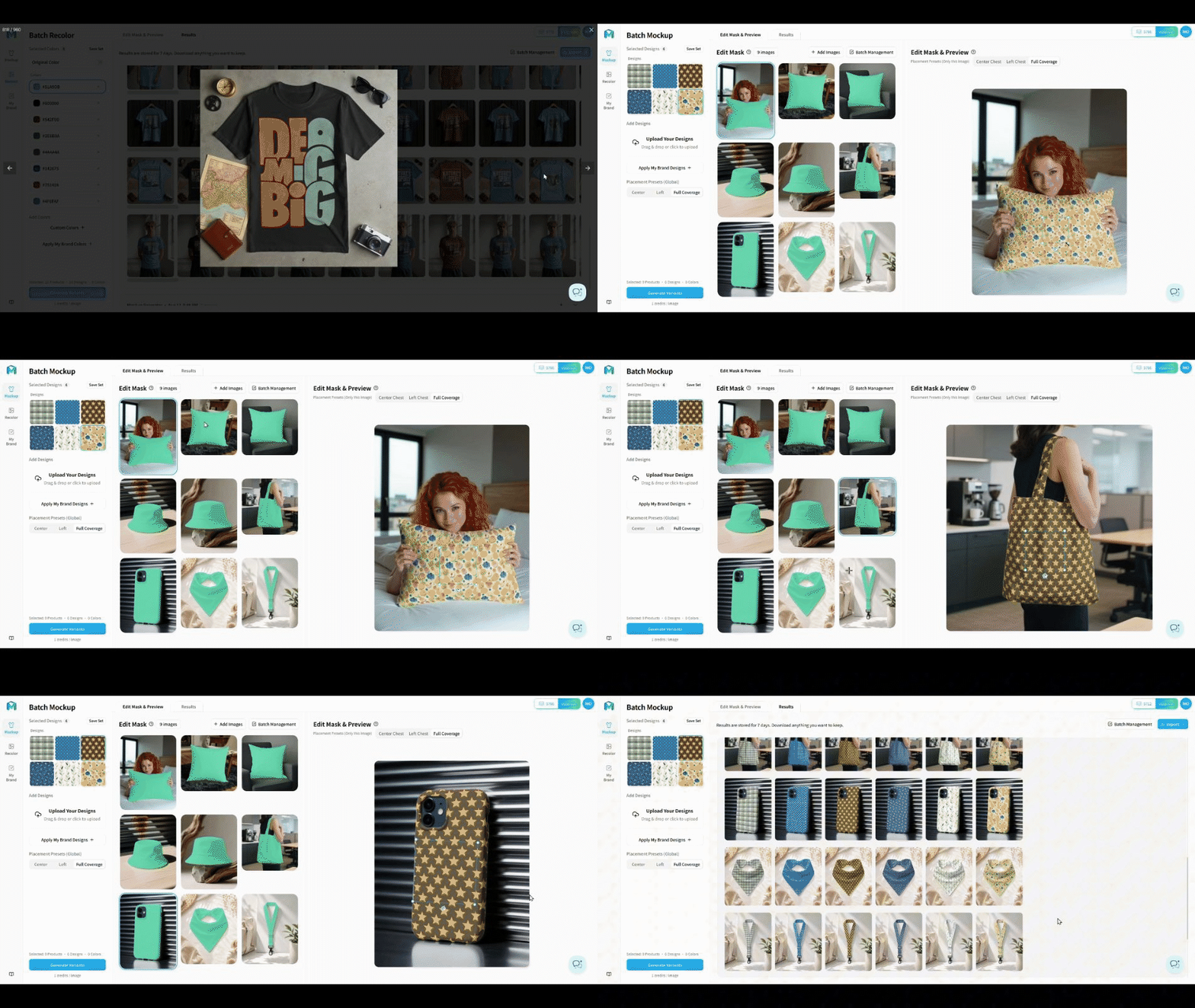
3. Fine-Tune the Result and Approve a Reference Mockup
After the initial placement, designers can still adjust the Pattern Type, pattern scale and repeat rhythm, rotation, position, and coverage area.
Create and approve a reference mockup for each product and its main camera angles. This reference serves as a calibrated visual standard; it does not mean that one set of adjustments will automatically work across every product and angle.
Once the quality standard has been established, the same product photos can continue to support new AOP designs and colorways. Representative output images should still be reviewed as the batch expands.
Automation handles repetitive operations, while your team retains control over composition and quality.
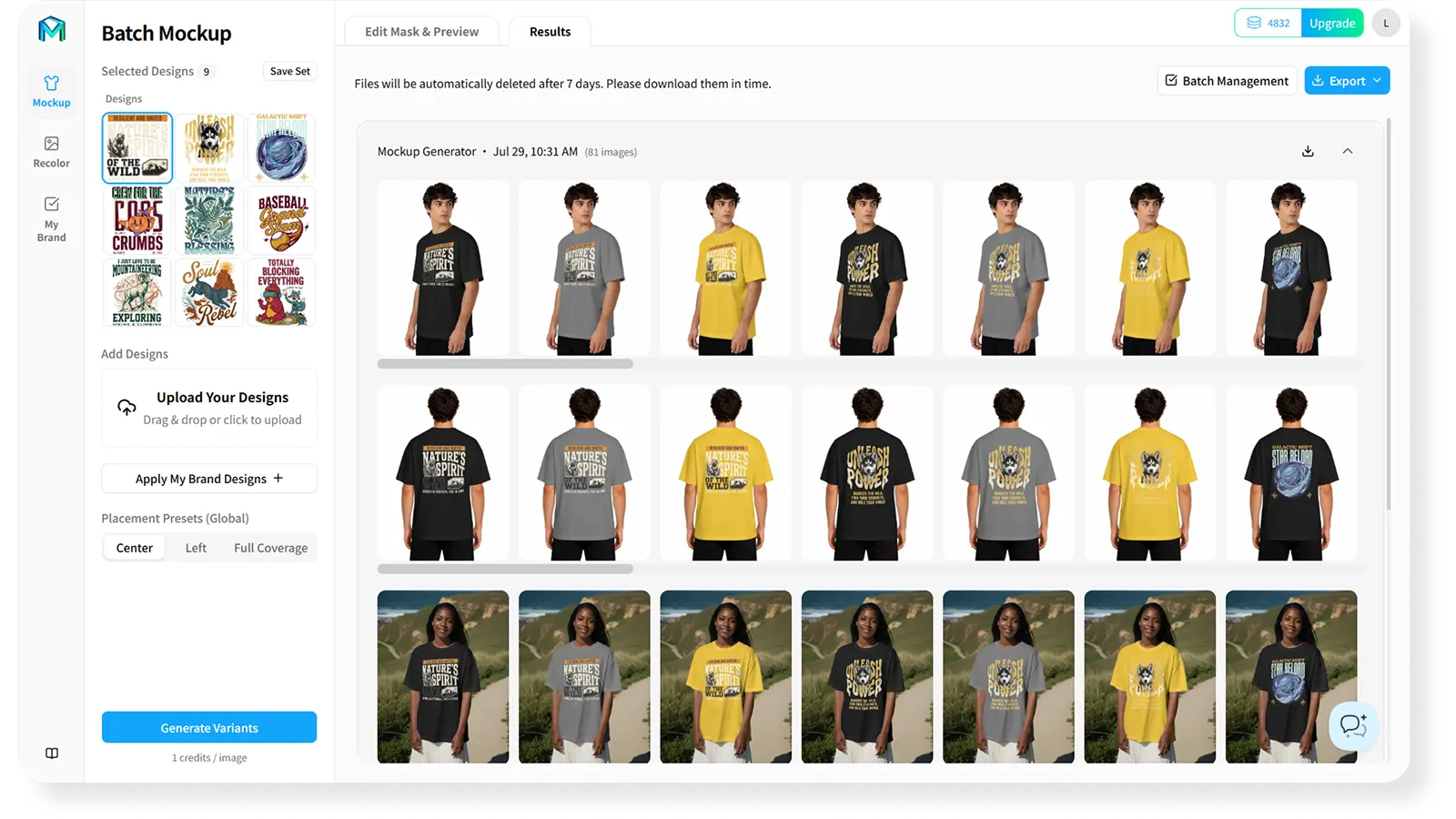
4. Batch-Generate Product Images for Listings
Once the reference mockups have been approved, Batch Mockup can generate the selected image combinations based on:
Product photos × AOP design assets
On a representative group of product photos, first verify the full-coverage AOP layout before expanding to a larger batch.
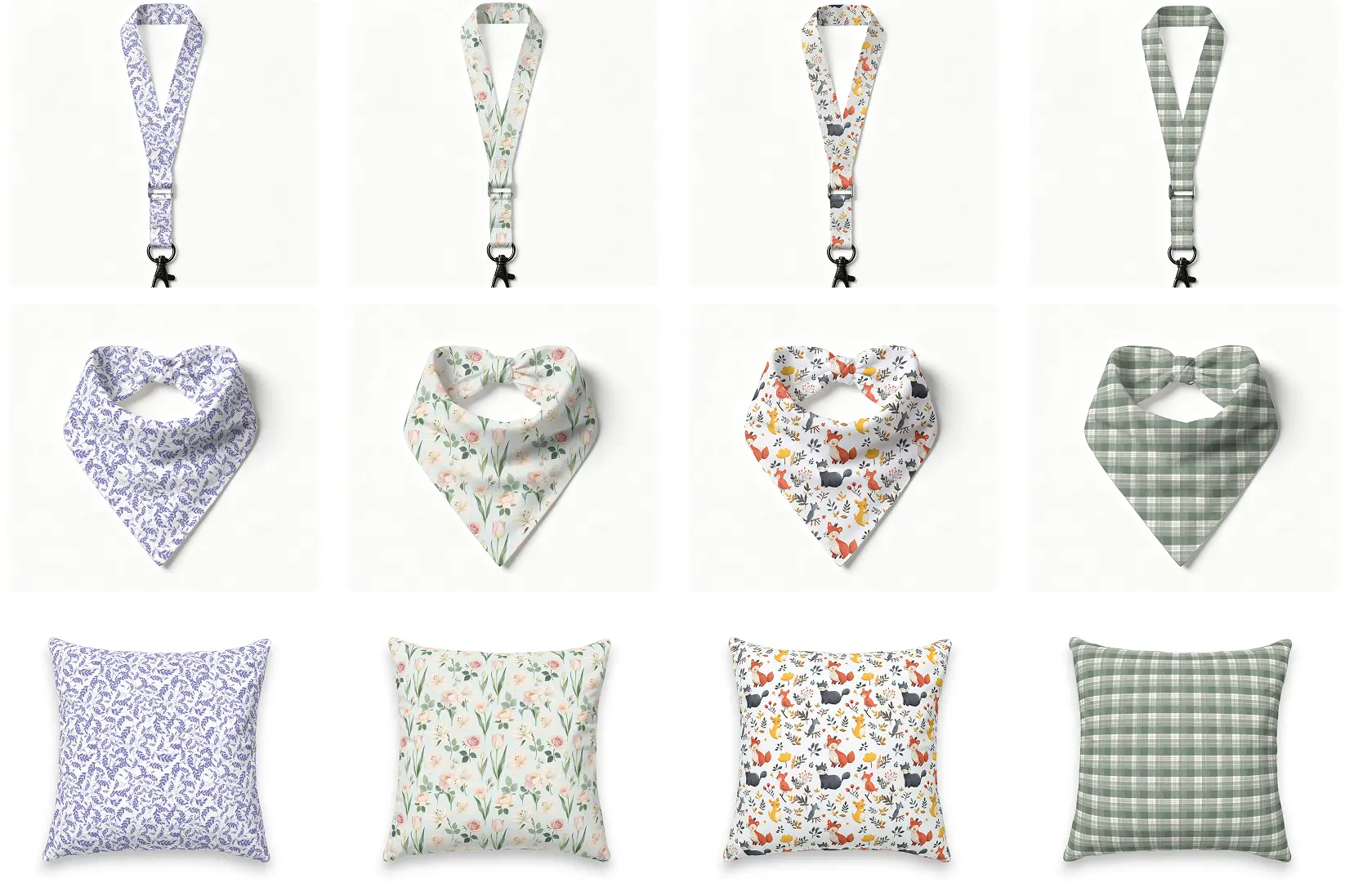
The same product photos can support additional patterns and colorways, reducing the need to rebuild masks, perspective, and lighting adjustments for every image. Different products, models, angles, and scenes can also carry the same design.
After generation, review the images against each marketplace’s requirements for dimensions, aspect ratio, file format, and content before publishing them to your listings.
Batch Generation Does Not Mean Giving Up Quality
The key to high-quality batch production is not generating the largest possible quantity immediately. It is first creating a reliable reference sample.
Start by testing three to five representative product photos with one AOP design. Focus on the following questions:
- Does the product suit the intended pattern scale and repeat rhythm?
- Are the key motifs positioned within the intended visible areas?
- Does the pattern deform naturally across curves, perspective, and folds?
- Do the edges, occluded areas, and different viewing angles remain visually consistent?
- Do the material, highlights, and shadows interact naturally with the pattern?
- Can shoppers understand the overall AOP effect at mobile-thumbnail size?

Once the reference result has been approved, expand the workflow across dozens, hundreds, or even more product-photo and design combinations using the same quality standard.
This way, you scale validated product image quality—not an uncorrected placement error.
Start With Your First Batch of AOP Product Images
“30,000 images” does not mean your team needs to generate 30,000 files all at once. It means your production capacity is no longer limited by editing every image individually.
Start with a set of your own product photos and one AOP design. First, turn those photos into calibrated, editable, reusable mockups. Then extend the approved visual standard across more patterns, colorways, and product image combinations.
With MockupLabs Batch Mockup, you can turn repetitive AOP product image creation into an editable, controllable, and scalable system for producing catalog imagery.
Start With One AOP Reference Batch
Verify pattern scale, visible coverage, material interaction, and mobile clarity before expanding the approved standard.
Start Creating AOP Mockups in Bulk