POD product image quality
How to Quickly Create High-Quality, High-Converting POD Product Images and SKU Visuals
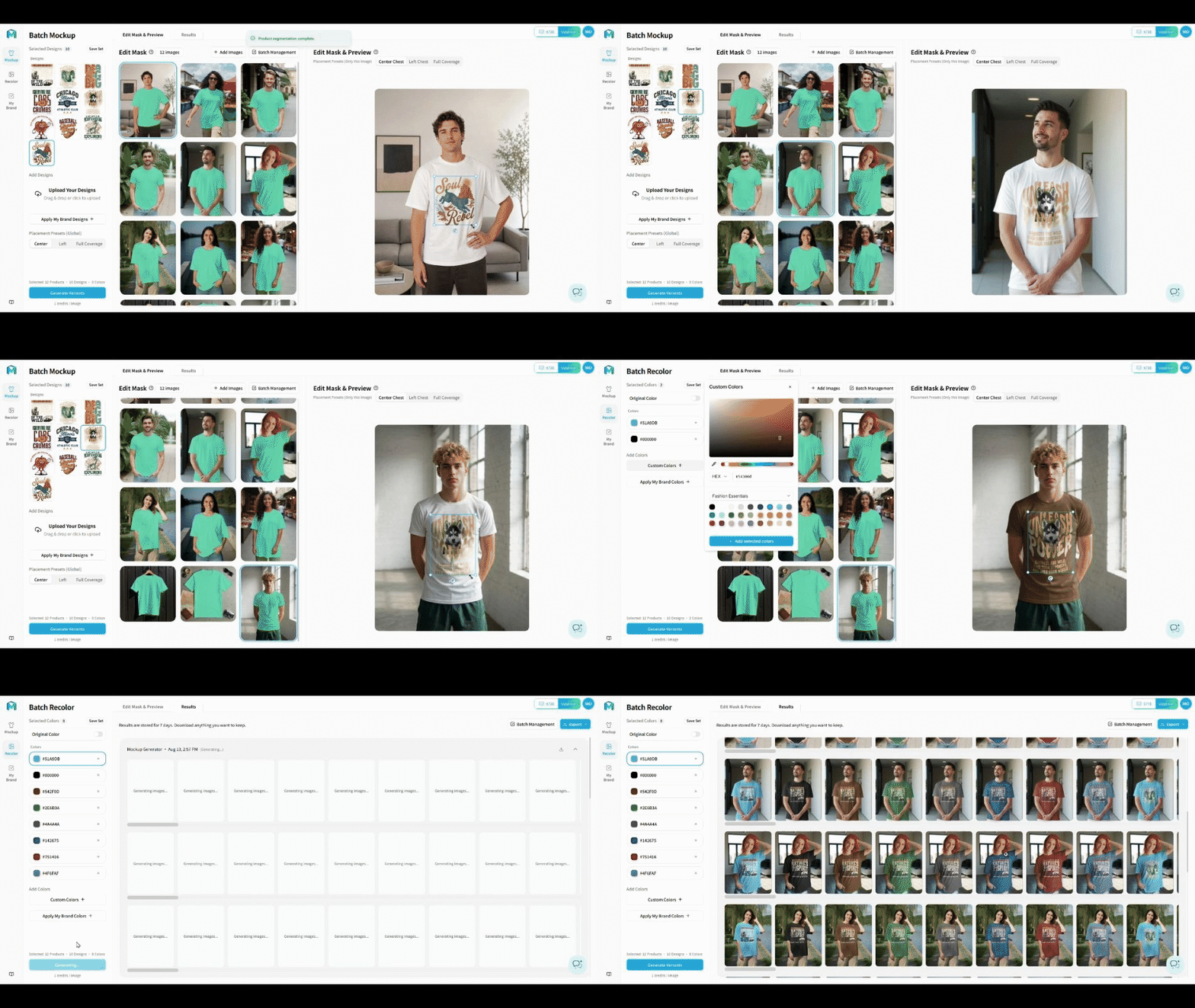
For print-on-demand (POD) sellers, creating product images has long involved an unavoidable trade-off:
Move fast, and batch mockups often look fake. Aim for realism, and production cannot keep pace with catalog expansion and new product launches.
Hundreds of product images can receive designs quickly with traditional batch tools. However, each product’s perspective, contours, and folds often fail to shape the artwork, leaving it as a flat layer.
Batch recoloring can also amount to little more than a color overlay: fabric texture gets smoothed away, highlights and shadows become distorted, and the product looks as though it has been painted over.
These images can fill a catalog quickly, but they may also look fake at first glance. When the product image makes the design look like a sticker and the color like a coating, shoppers are less likely to trust that the product they receive will match the images—and clicks and conversions can suffer.
The alternative is product photography, retouching each image individually in Photoshop, or 3D rendering. The quality is higher, but when you are working with large numbers of product photos, designs, and color combinations, the time and cost can quickly spiral out of control.
Traditional batch tools solve the volume problem but often sacrifice realism. Manual retouching preserves quality but sacrifices speed.
MockupLabs Batch Mockup & Recolor is designed to resolve this exact tension:
Results designed to look closer to product photography or 3D rendering, with the efficiency of a batch tool.
Make the Product Look Truly Printed—Not Covered by Floating Artwork
A product is not a flat rectangle.
Clothing curves around the body and forms folds. Models turn, lean, or move, while highlights and shadows shift with every angle.
MockupLabs uses visible information about the product and photo, including:
- Apparent contours and camera angle
- Surface curvature, perspective, and spatial relationships
- Folds, surface variations, edges, and seams
- Highlights, shadows, and tonal changes
- Material texture and diffuse light reflection
Using these visual cues, the photographed product surface determines the design’s perspective and deformation while the source image’s visible lighting remains integrated.
The product’s curves, fabric folds, and angled areas make the artwork bend naturally with its surface. The highlights, shadows, and material texture in the original image continue to affect the design.
Even when a model is running or the product is photographed from a complex angle, its surface can still carry the design naturally. For AOP and large-area prints, the product’s curves and edges can also carry the artwork continuously.
The result looks closer to a photograph of the finished printed product or a 3D render—not a sticker floating above the surface.
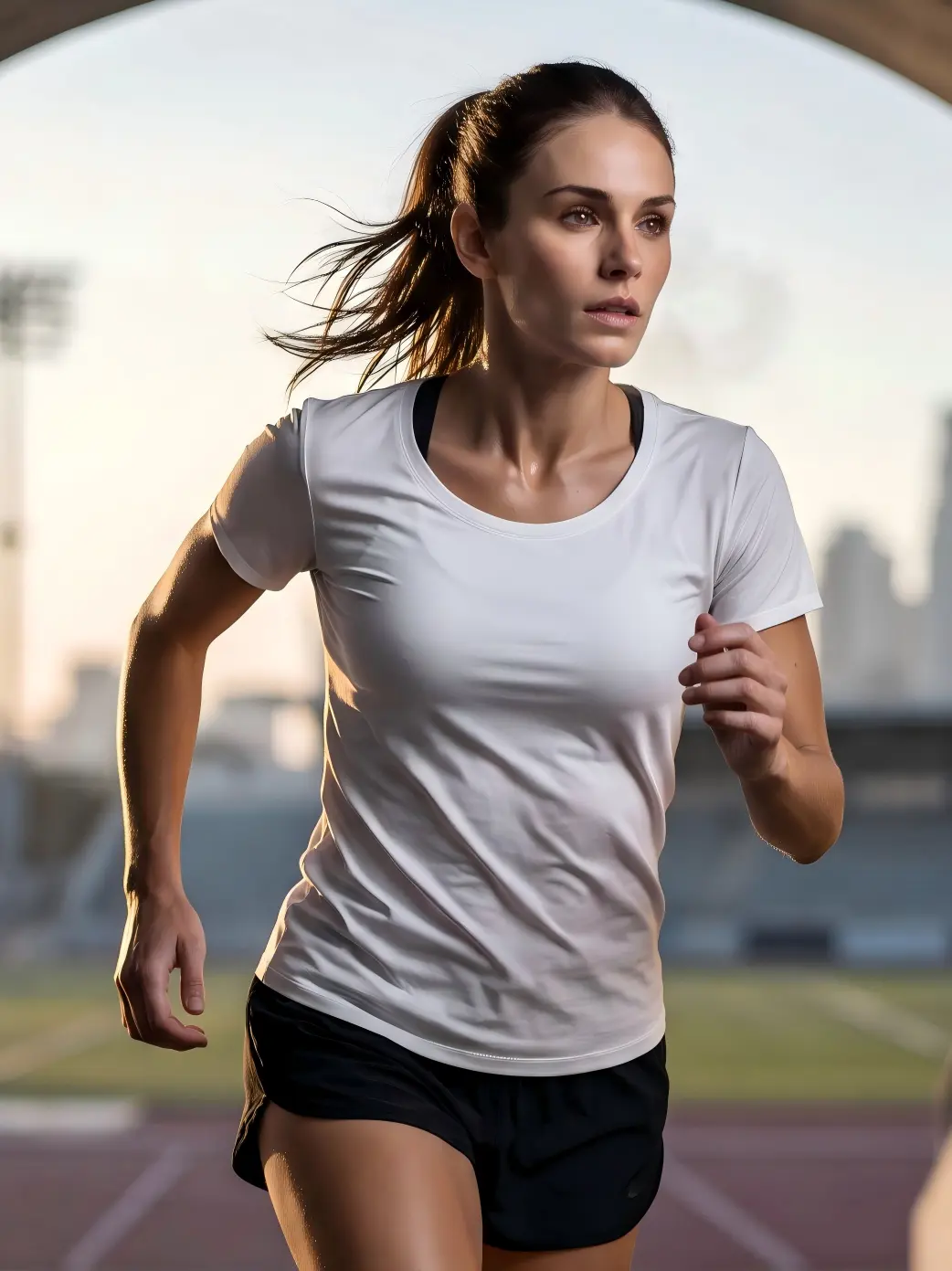
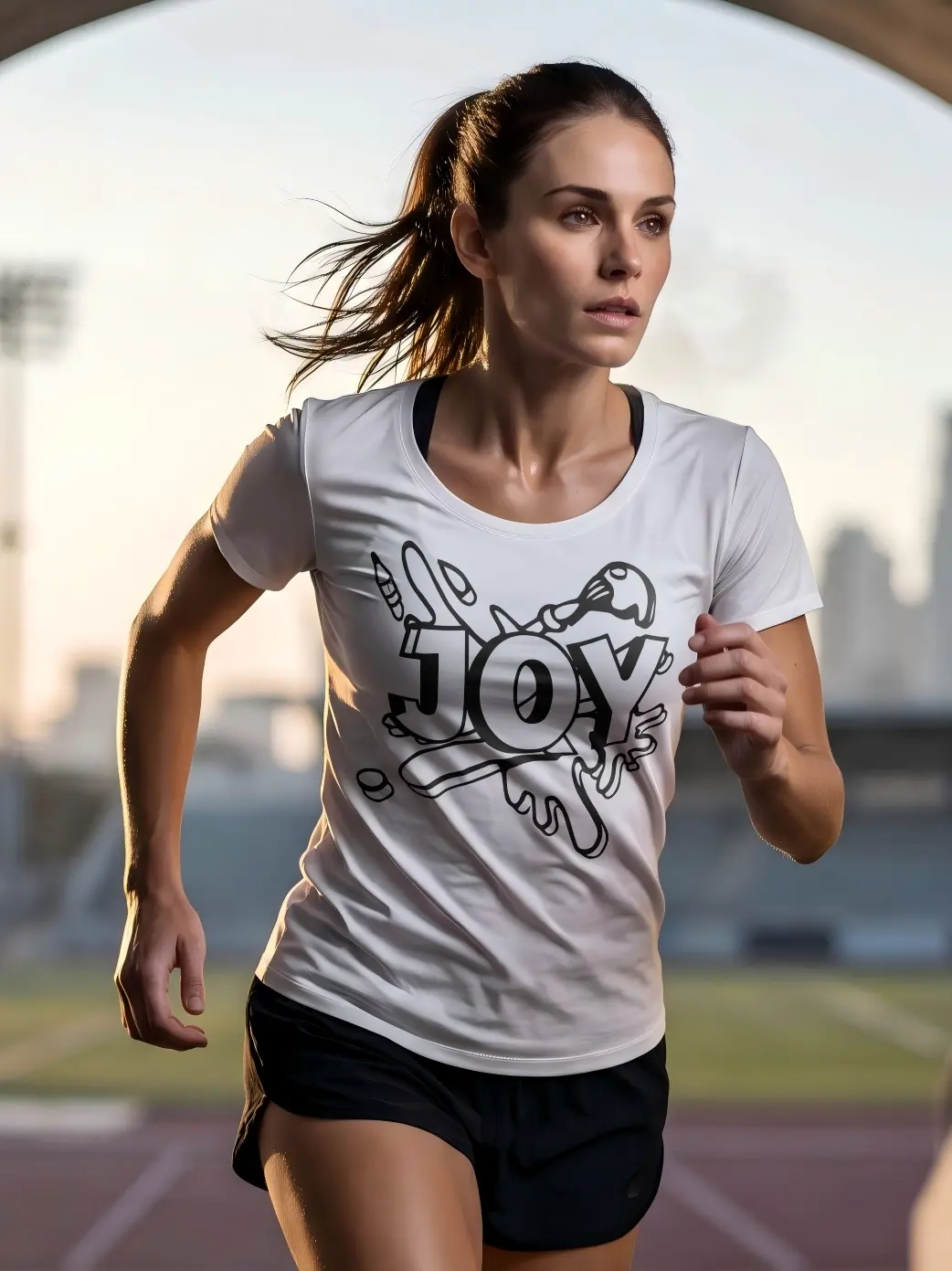
Official before / after The same product photo before and after artwork placement; visible folds, perspective, and lighting remain part of the result. Source.
Preserve the Product’s Lighting in Its New Color—Don’t Just Add an Overlay
Realistic recoloring is more than simply changing the hue of the product area.
Batch Recolor identifies the region to recolor and renders the target color using the visible material, folds, highlights, shadows, ambient-light cues, and diffuse-light relationships in the original photo.
After recoloring:
- Fabric texture, stitching, and folds remain clear
- Highlights, shadows, and tonal transitions are preserved
- Product edges do not look smeared or painted over
- Skin, backgrounds, and other objects are not recolored
- Different colorways still look like the same real product
The color changes, but the product still looks as though it was photographed in the original scene and lighting.
Teams no longer need to reshoot every colorway or manually create selections, adjust colors, and repair lighting image by image.
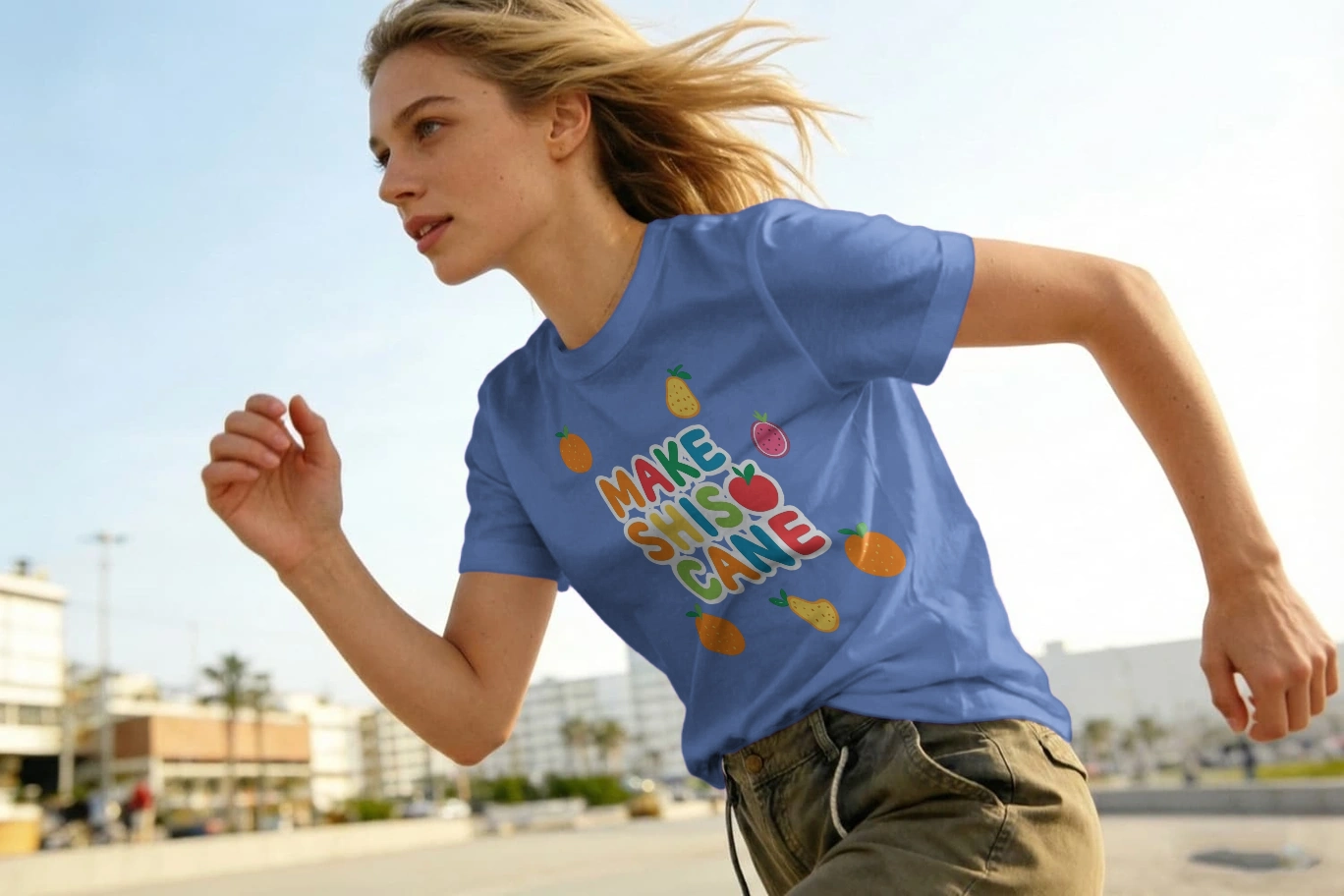
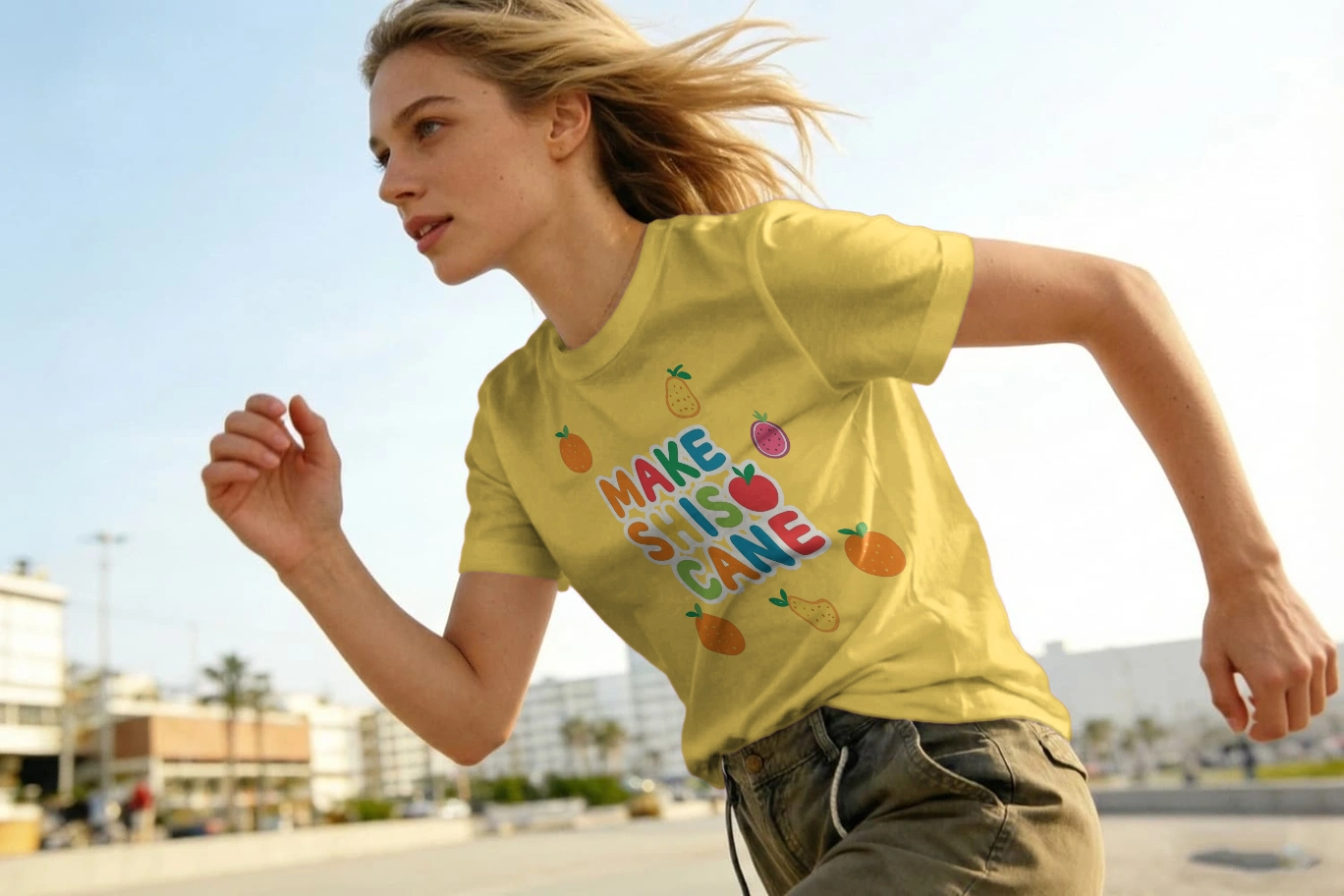
Across the supplied examples, the model, pose, design scale, placement, folds, and background remain consistent.
Maintain Precise Control While Producing in Batches
Automation should not mean losing control.
After the product photos and designs are uploaded, the system automatically handles product detection and design fitting. Users can apply consistent placement settings such as Center, Left, or Full Coverage, while still fine-tuning the artwork’s size, position, and coverage for unusual angles, important hero images, or complex print areas.
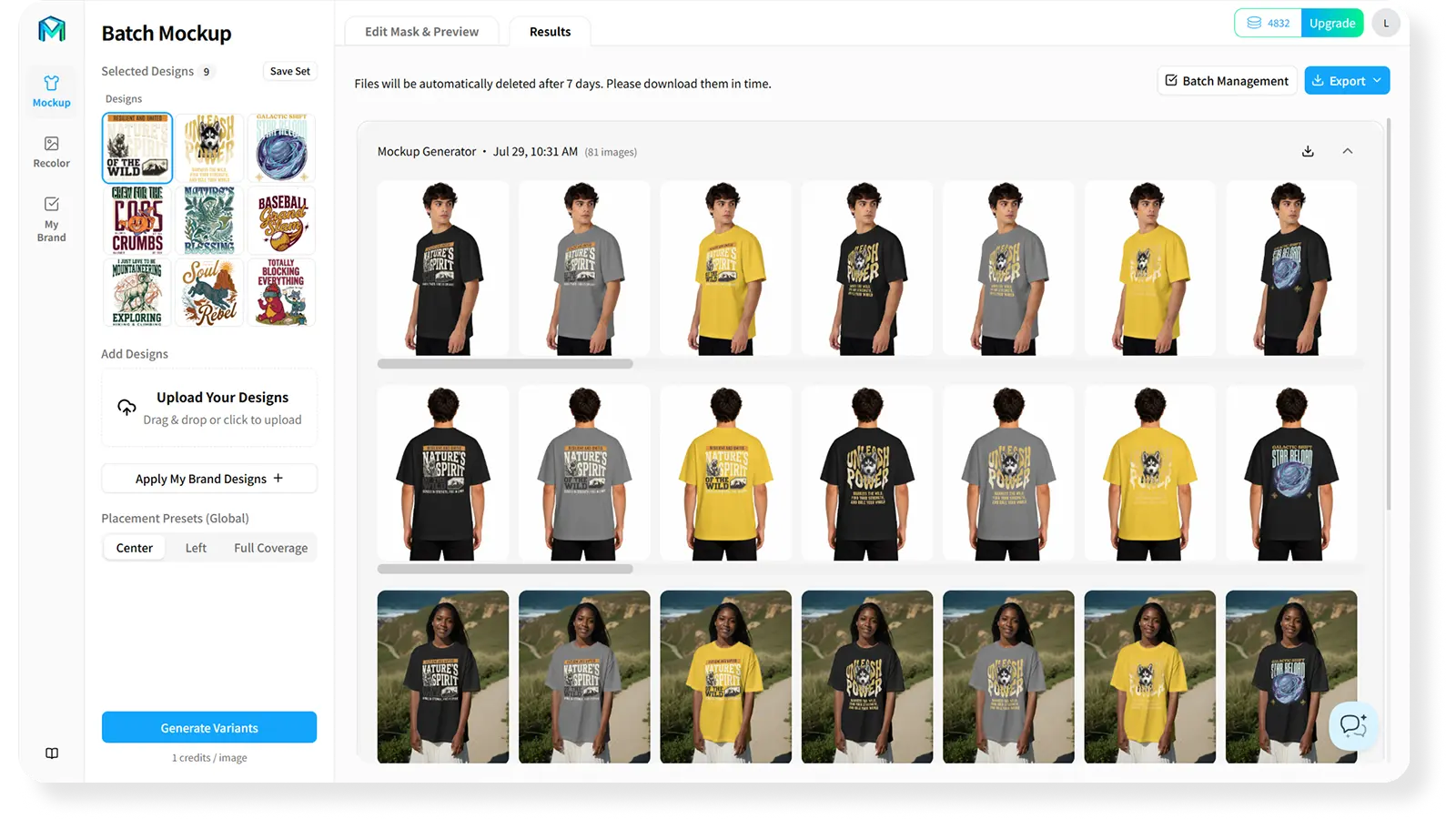
Add HEX colors, preset palettes, or brand colors, and the system can batch-generate product images for every selected combination of:
Product photo × Design × Product color
For example:
300 product photos × 1 design × 10 colors = 3,000 product images

Automation handles detection, fitting, recoloring, and batch generation. Operations and design teams only need to focus on the images that genuinely require judgment and refinement.
Batch Production No Longer Has to Mean Mass-Producing Cheap-Looking Mockups
Customers cannot touch a POD product before purchasing it. They can only use the listing images to decide whether it is worth buying.
Product images with stronger conversion potential need to:
- Keep the product’s contours, materials, and details true to life
- Show natural design placement, scale, and perspective
- Present believable recoloring without losing light, shadow, or texture
- Remain consistent across SKU variants
- Stay clear even at mobile screen sizes
High-quality product images cannot guarantee conversions. However, they can reduce customer uncertainty, communicate the product, design, and color more accurately, and give every listing a fairer chance in the market.
Verify Quality Before Scaling Up
Before launching a full batch, start by testing:
3–5 product photos × 1 design × 2–3 colors
Pay particular attention to design placement, surface fit, text clarity, recoloring realism, and mobile presentation.
Once the sample has been approved, apply the same standard across dozens or hundreds of product photos. This ensures that batch production scales verified quality—not repeated mistakes.

Test Faster and Scale Winning Designs Faster
When product-image production is no longer constrained by the trade-off between speed and quality, POD teams can test new trends, patterns, and color combinations more quickly.
Start by creating realistic, consistent test images for a small selection of core products. Use clicks, favorites, add-to-cart activity, and orders to identify the most promising directions. When a winning design emerges, quickly expand its product-image coverage across more products and colors, then map those images to planned SKU variants.
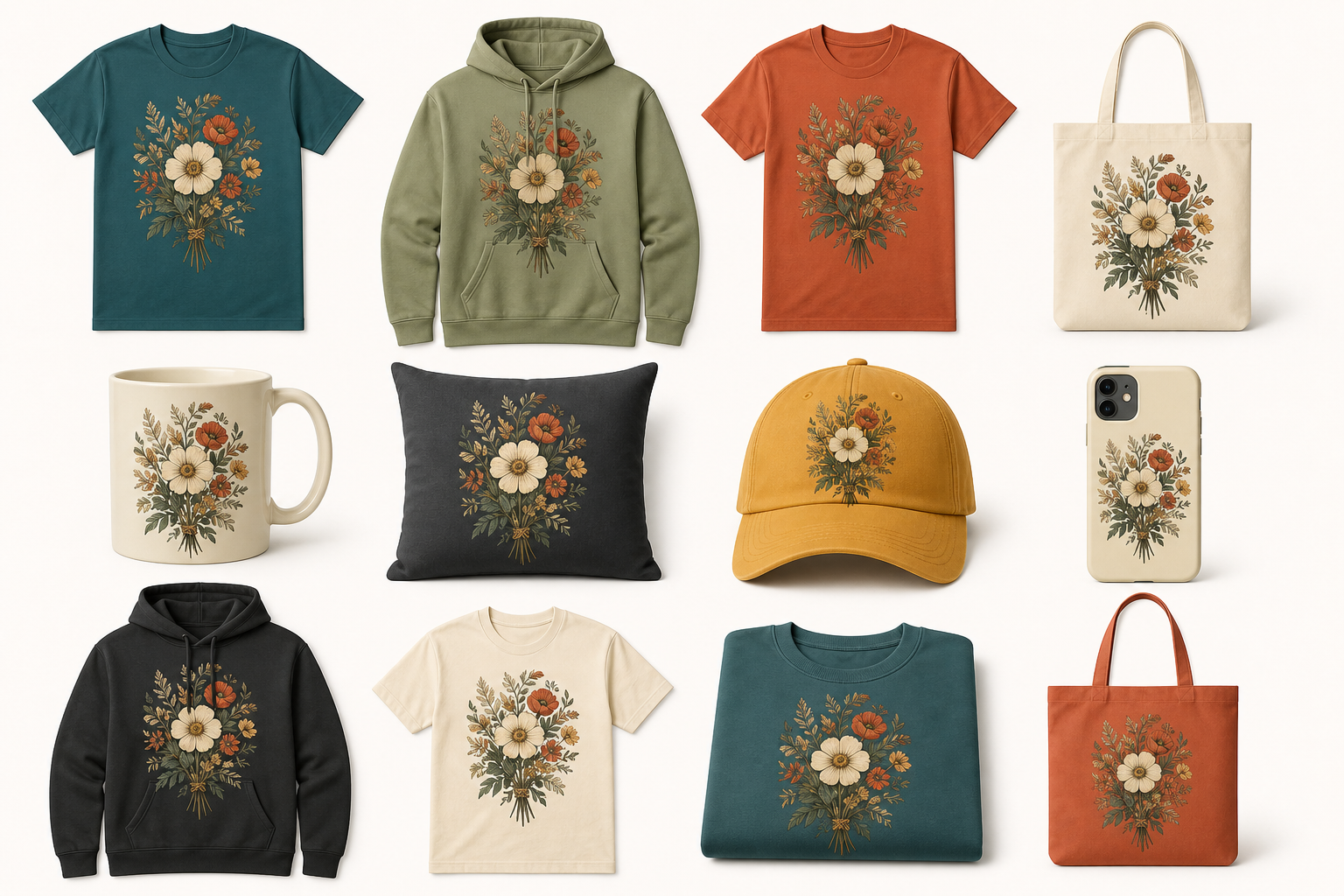
Batch Mockup & Recolor creates product-image variations for selected product, design, and color combinations. These files can be mapped to planned SKU variants; SKU numbers, inventory, pricing, and product records remain managed in Etsy, Shopify, Amazon, an ERP, or a PIM system.

This workflow reduces the usual trade-off between speed and realism. Use your own product photos to batch-create product images featuring designs and colorways that follow the product’s visible contours, folds, light, and shadow.
Start Creating Better Batch Mockups
Build a small verified batch, review the images that require judgment, and then scale the approved standard across your catalog.
Start Creating High-Quality Batch Mockups