Trend-driven catalog expansion
Found a Winning Design? Expand It Across More Products and Colors Before the Trend Fades
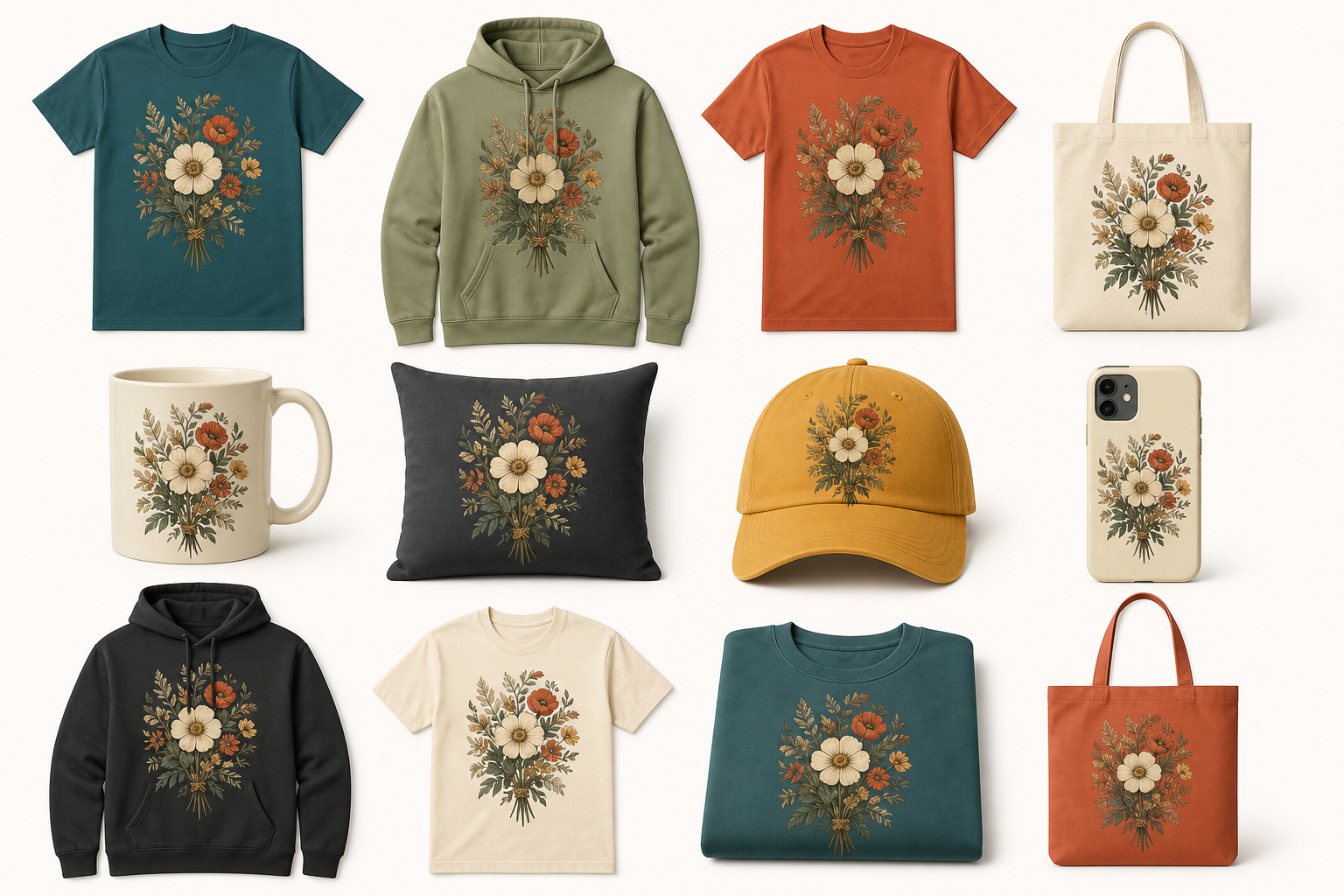
When a design starts selling, the scarcest resource is not more inspiration. It is the time left in the trend.
While shoppers are still searching, you need to expand that proven design across more products, colorways, and listings—giving more SKUs a chance to be discovered and purchased before demand begins to fade.
In practice, that expansion often gets stuck in production. Ecommerce teams spend hours applying artwork one image at a time, adjusting placement, changing product colors, reviewing results, naming files, and exporting them. Designers then have to check whether the artwork follows the product naturally, whether the new colors still look realistic, and whether the visuals remain consistent across the catalog.
Move too quickly, and the artwork can look like a sticker. Rely too heavily on manual refinement, and the trend may be over before the listings go live.
The value of batch production is not multiplying one unconvincing mockup 3,000 times. It is producing thousands of product images that look more realistic, consistent, and worth clicking.
You Do Not Need More Designs. You Need a Faster Path From Design to Listing.
A print-on-demand catalog can grow quickly:
Designs × product photos × colorways = product image variants
For example:
1 design × 300 product photos × 10 colors = 3,000 product images
That means 3,000 images—not necessarily 3,000 SKUs, since one SKU may use several angles or lifestyle scenes.
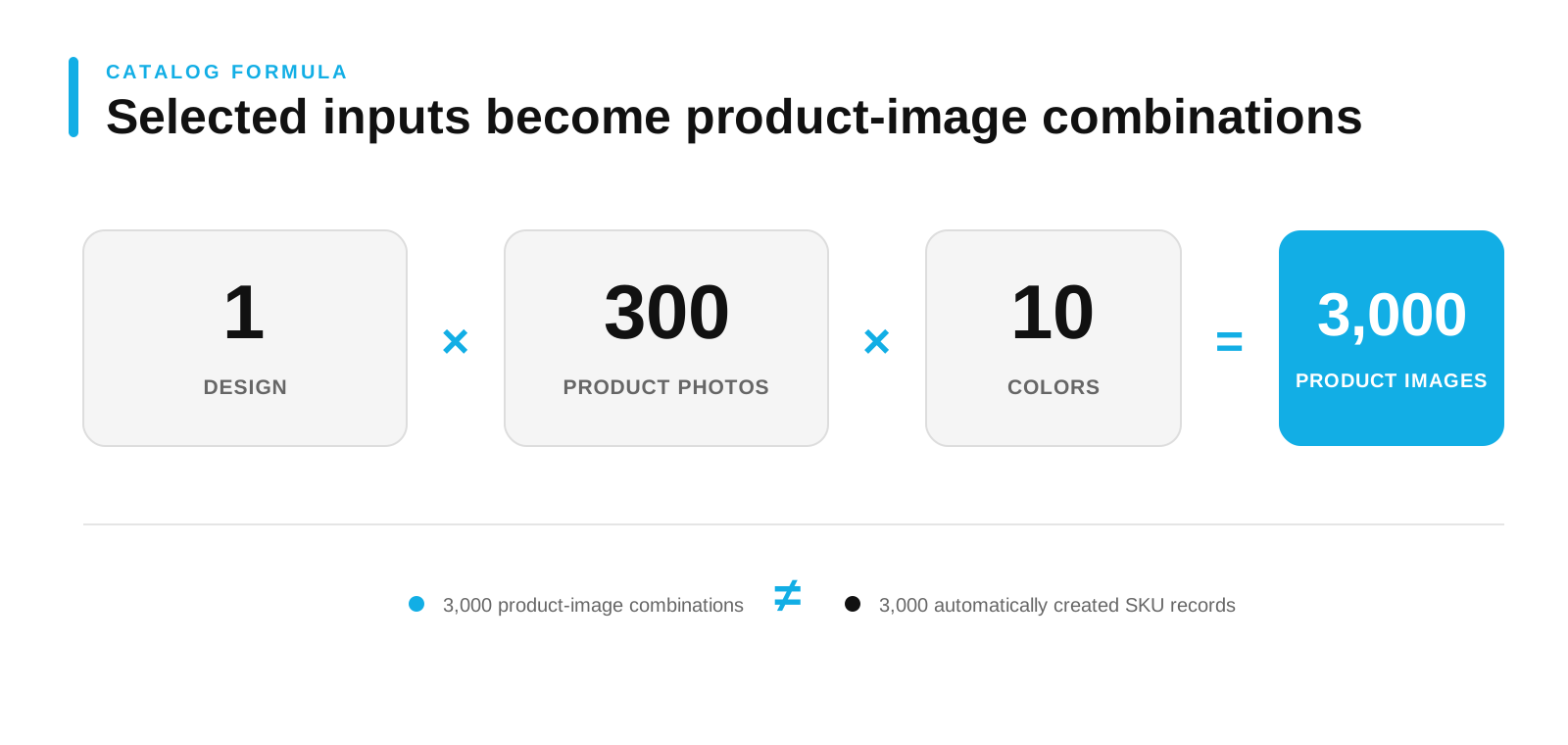
Producing those images manually means repeating the same tasks again and again: importing the artwork, adjusting its position, changing the product color, checking the result, naming the file, and exporting it.
The first image is rarely the real bottleneck. The challenge is repeating the same process—and making the same visual decisions—hundreds or thousands of times.
When teams are under pressure to launch quickly, placement quality, recolor realism, and catalog consistency are often the first things to suffer. Artwork begins to float above the fabric, recolored products lose their texture, and the same design appears at different sizes or positions across listings.
MockupLabs Batch Mockup & Recolor is designed to reduce that repetitive work without taking creative control away from your team.
Start With Your Own Product Photos, Not Generic Templates
Batch Mockup & Recolor works with your existing product photography, including white-background packshots, on-model images, street-style photography, action shots, and branded lifestyle content.
This lets you keep the products, models, camera angles, lighting, and visual identity that already make your brand recognizable. You do not need to rebuild every photo as a complex PSD or Smart Object template before getting started.
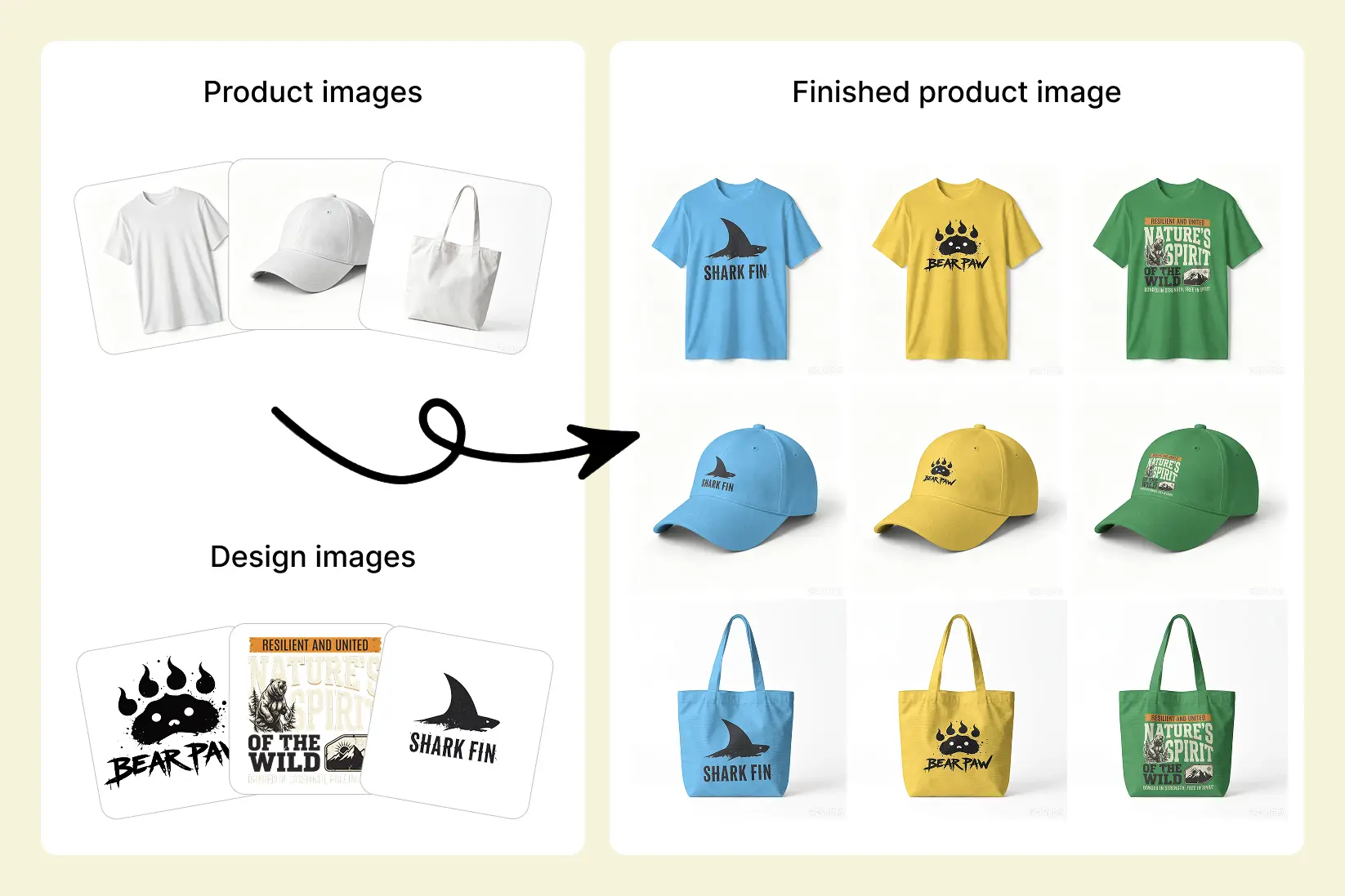
After you upload your images, the tool identifies the product or print area and converts each static photo into an editable mockup. You can then apply new designs, adjust their placement, and preview additional product colors.
The same set of product photos can be reused with new artwork and colorways while retaining the poses, composition, lighting, and brand character of the original shoot.
Make the Artwork Follow the Product—Not Float Above It
A basic image overlay simply places flat artwork on top of a photo. That approach quickly breaks down when the product has perspective, curves, folds, or complex lighting.
Batch Mockup & Recolor adjusts the artwork’s perspective, warping, and visual blending based on the product’s angle, curved surfaces, folds, and original lighting. This helps the design:
- Follow the product’s perspective and proportions
- Adapt more naturally to curves, folds, and bent areas
- Retain visible highlights, shadows, and material texture
- Handle repeating patterns, edges, and seams more consistently in AOP mode
For product photos with multiple angles, curved surfaces, or pronounced folds, the tool can handle much of the adaptation automatically. Complex poses, unusual print areas, and important hero images can still be reviewed and refined individually.
The result looks closer to artwork that has already been printed on the product—not a flat image floating above it.

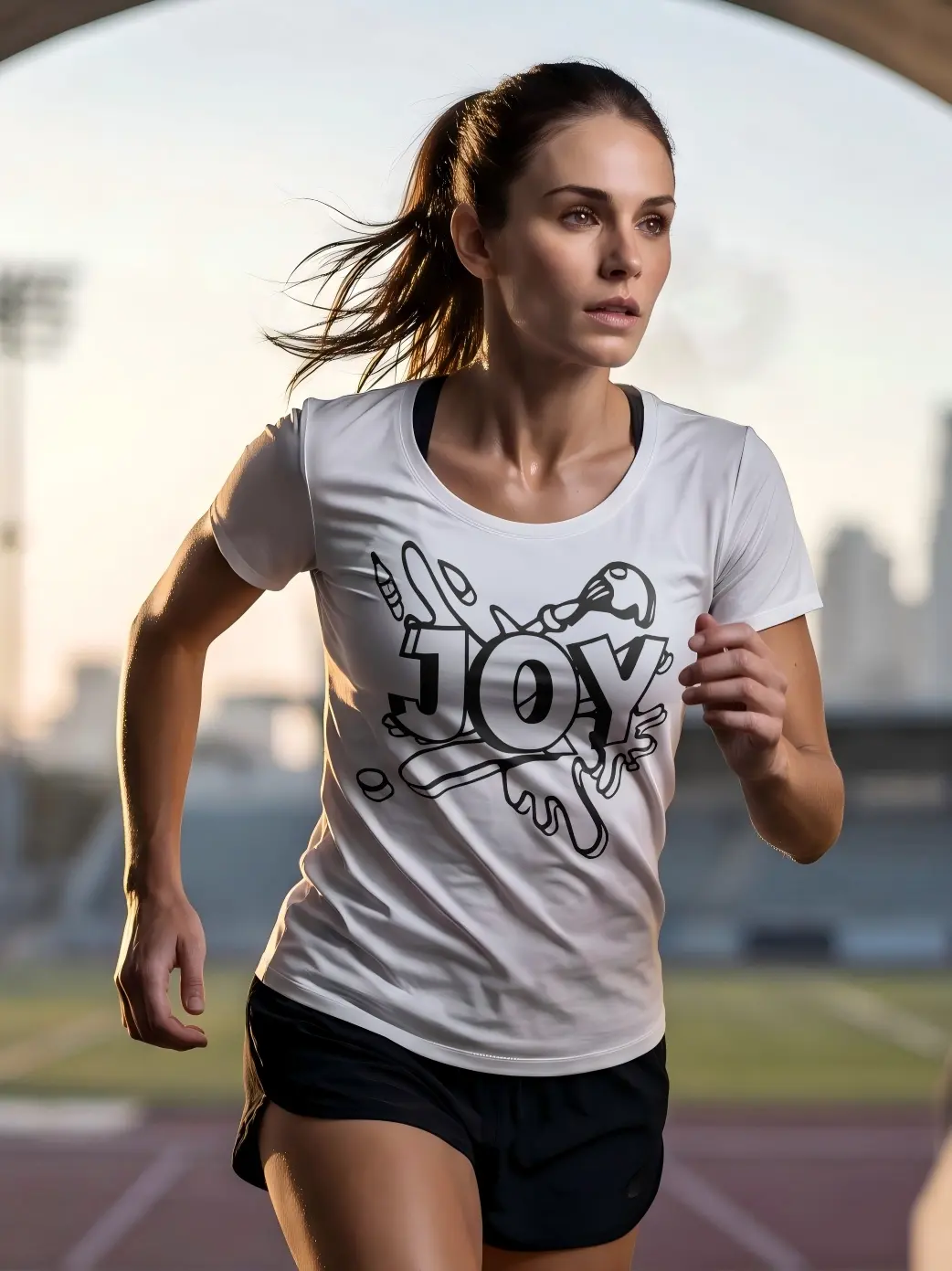
Official before / after Artwork is fitted to the shirt while the original pose, folds, and lighting remain visible. Source.
Change the Product Color Without Losing the Material
A simple color overlay can flatten fabric texture, muddy highlights, distort shadows, or accidentally affect the model and background.
Recolor focuses the change on the selected product area while helping preserve the visual details that make the material look real: stitching, texture, folds, highlights, shadows, and surrounding light. It also helps minimize changes to the model, background, and other non-target areas.
The color changes, but the product still feels grounded in the original scene and lighting.
This allows you to preview additional colorways without reshooting every product or manually recoloring every image.
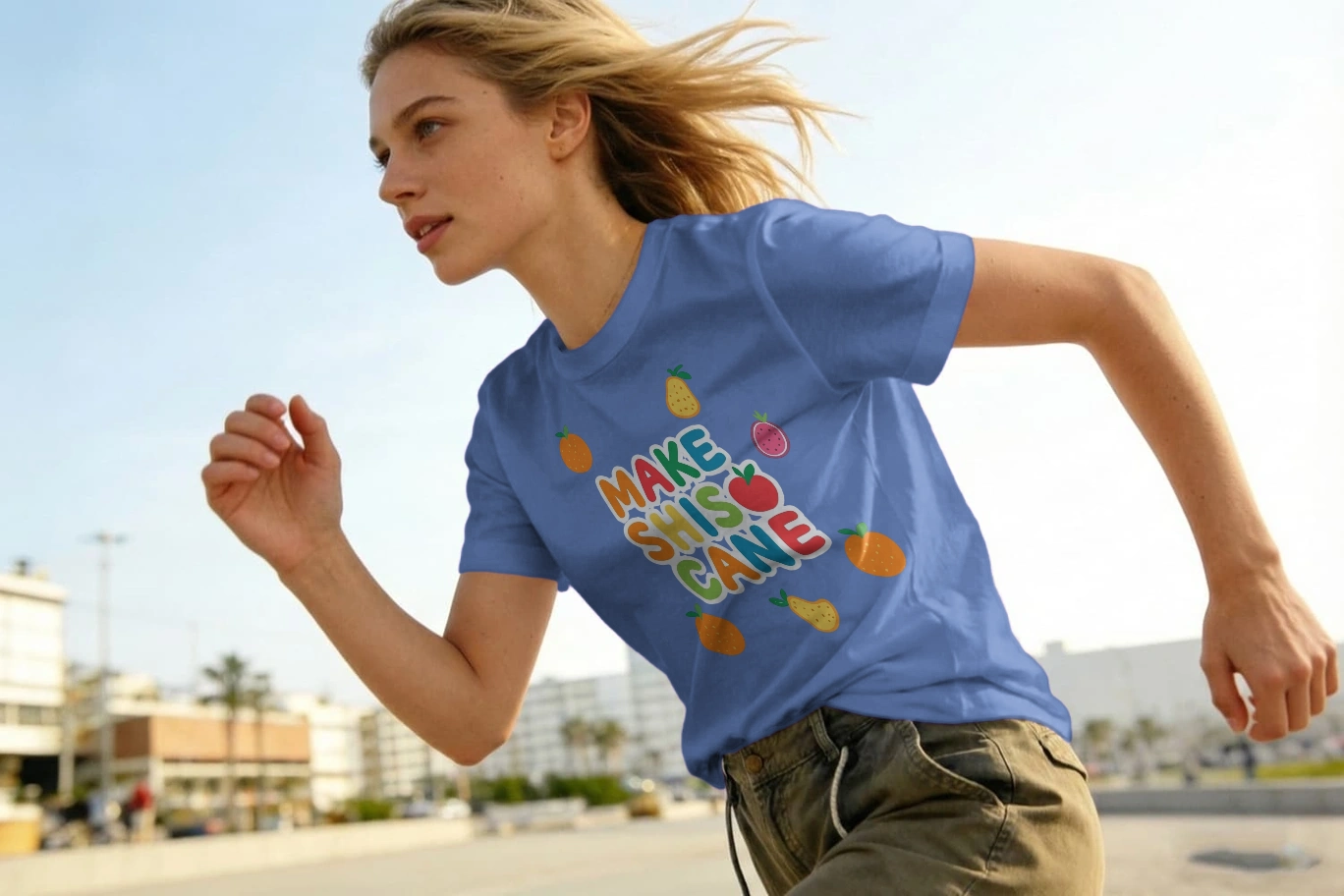
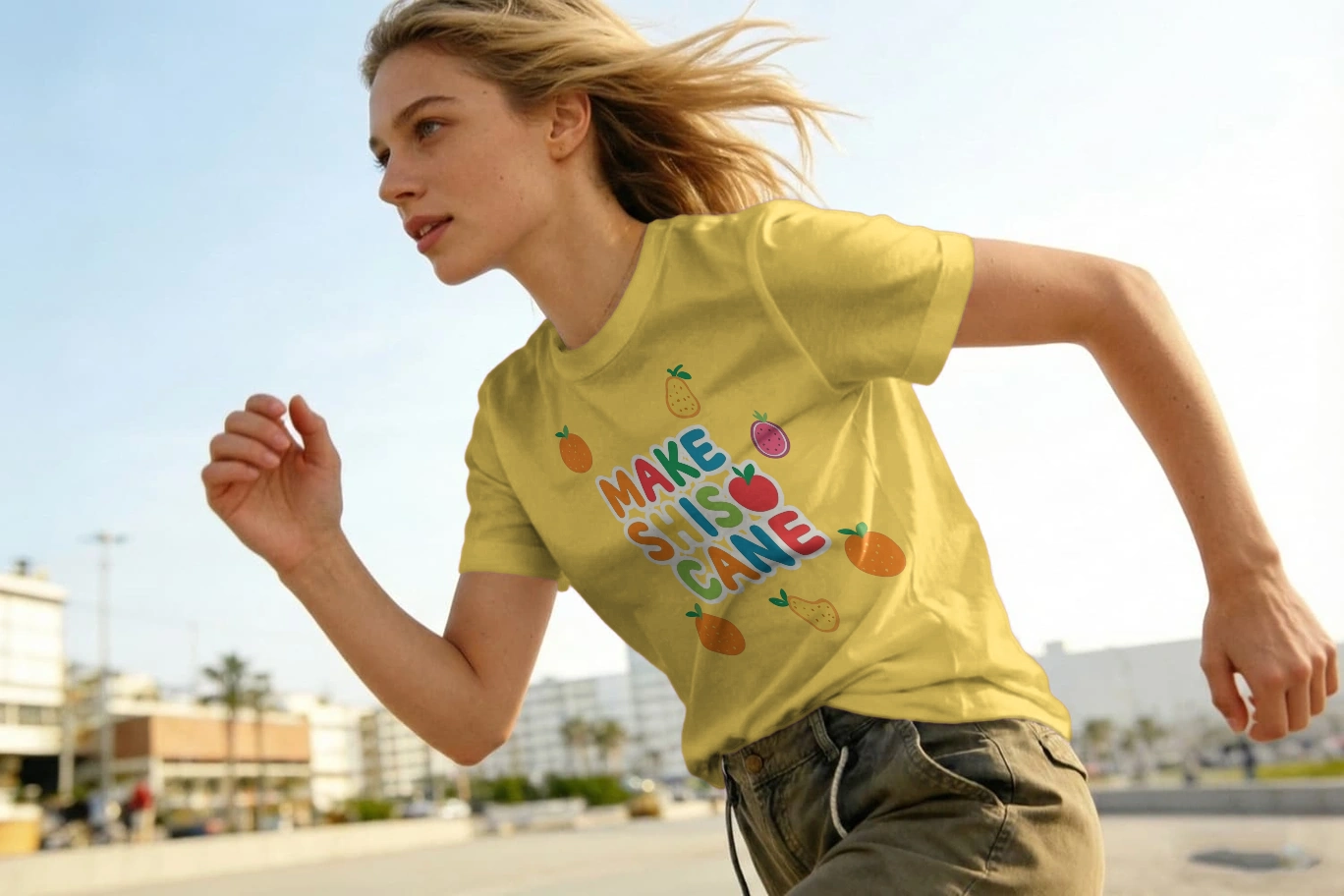
The supplied comparison keeps the same model, pose, artwork scale, and placement while changing the product color.
Go From One Winning Design to More Products and Colors in Four Steps
1. Upload Your Product Photos and Designs
Upload photos featuring different products, models, angles, and settings, then add one or more designs. The tool identifies the relevant product or print areas and prepares the photos as editable mockups.
2. Review the Placement and Fine-Tune Important Images
Apply a shared layout—such as centered, left-chest, or all-over—and preview how the artwork appears across your photos.
For unusual angles, complex print areas, or important hero images, adjust the design’s size, position, and coverage individually.
Automation handles the repetitive work, while your team keeps control over the final presentation.
3. Add the Colorways You Plan to Sell
Enter HEX or RGB values, choose from a palette, or use a brand color set to preview new product variations.
You can compare combinations without reshooting the product or recoloring each image by hand.
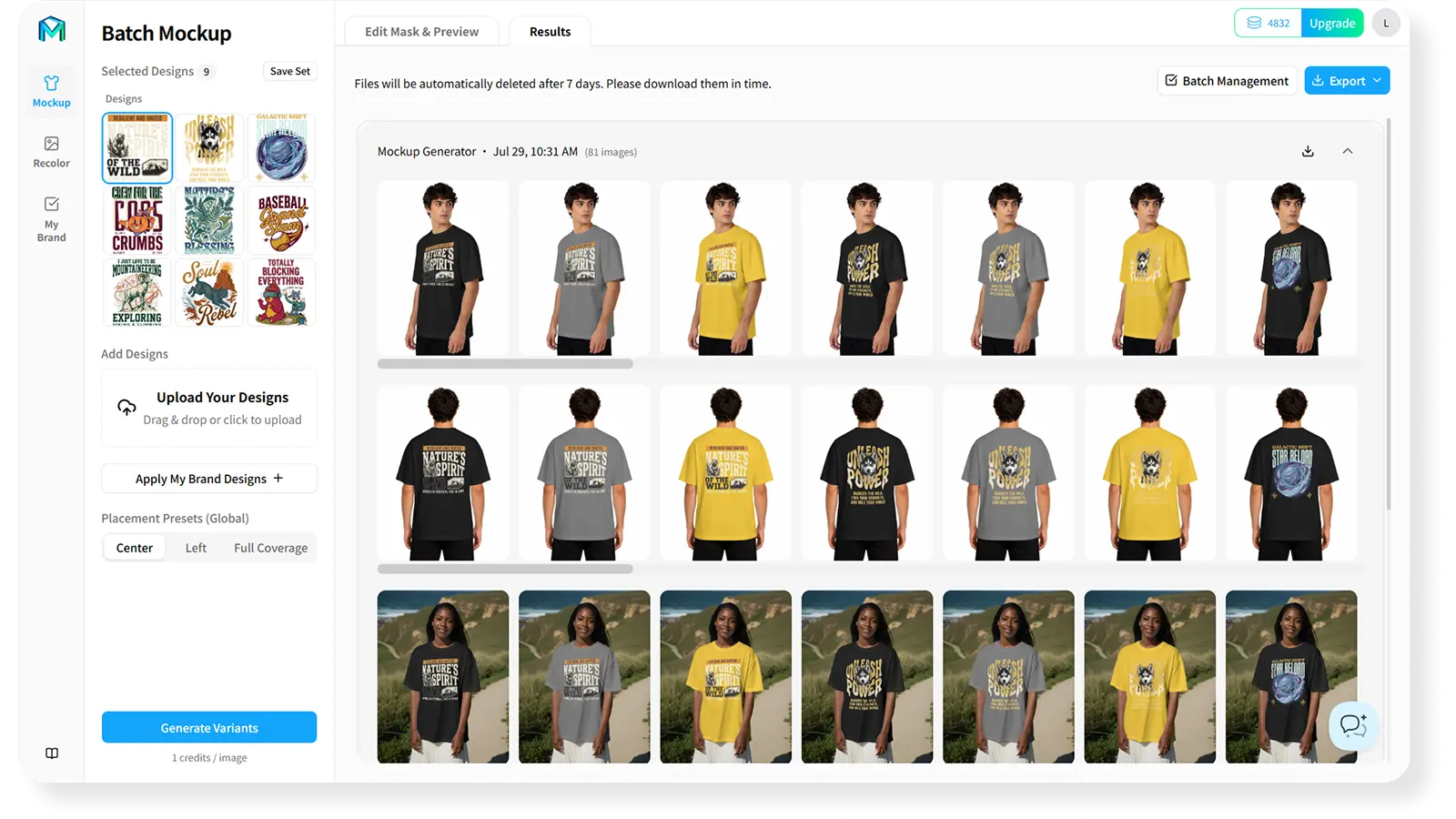
4. Generate the Selected Combinations in Bulk
Once the placement and colorways are approved, generate product images in bulk from the selected combinations of:
Designs × product photos × colors
A winning design can move across more products and colorways, while the same product photos can be reused for future designs instead of rebuilding every mockup from scratch.
Find the Combinations Worth Scaling While Demand Is Still Strong
The same design can perform very differently depending on the hero image, product type, color, model, camera angle, and artwork scale.
Once the variants have been published and have received enough traffic, use your store and advertising data to compare:
- Which hero image earns the highest click-through rate
- Which products and colors attract the most interest
- Which artwork scale reads most clearly at thumbnail size
- Which combinations generate more add-to-carts and purchases
- Which SKUs deserve further expansion—and which should be paused
Batch generation does not replace merchandising judgment. It gives your team more credible options to test while the trend still has momentum.
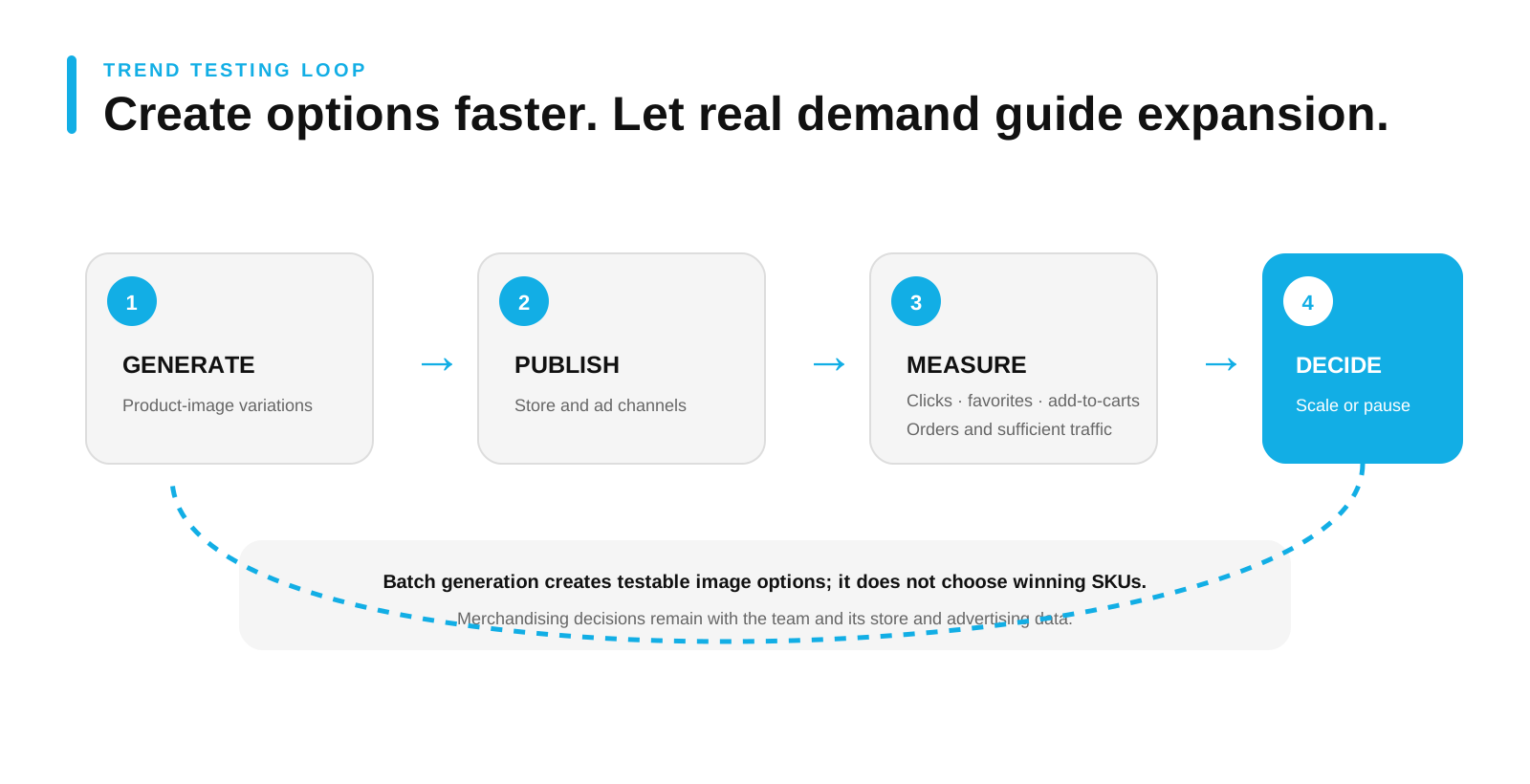
The faster you can launch and evaluate those combinations, the sooner you can focus your resources on the products and colorways that are actually working.
Turn a Winning Design Into a Larger Sales Opportunity
A winning design should not be trapped in a queue of repetitive placement, recoloring, and exporting tasks.
Start with your own product photos. Make the artwork feel connected to the real product. Preserve the original material, lighting, and texture as you create new colorways. Then expand the approved result across more products, colors, and listings while customers are still searching.
Speed does not have to come at the cost of realism. And batch production does not have to mean producing cheap-looking mockups at scale.
Use MockupLabs Batch Mockup & Recolor to expand your winning designs across more products and colors.
Scale a Winning Design While Demand Is Active
Start with approved product photos and colorways, generate credible options, and use real store data to decide what deserves further expansion.
Start Scaling Your Best-Selling Designs